
How to Add Google Drive to Proxmox Using Rclone
Hi everyone, and welcome back! It’s been a while since my last post, but I wanted to kick off the new year with some fresh content and keep the blog momentum going. Today I’m diving into Proxmox backups specifically, how I’m using rclone with Google Drive to automatically send my VM and container backups to the cloud.
The goal is simple: I wanted a reliable, automated offsite backup solution that protects me in case of hardware failure, while also giving me an easy way to store important files in the cloud. As someone who’s constantly running out of local storage, the ability to offload backups to Google Drive has been a game-changer for my homelab. Of course, it’s not a perfect solution
I’ll cover the real-world pros, cons, and gotchas later in this post - but for my use case, the convenience far outweighs the drawbacks.
Overview
This guide shows how to mount a cloud storage using rclone on Proxmox and keep it persistent across reboots using systemd. Why would you want this? If your local storage dies, you still have a remote copy of your Proxmox backups.
Rclone allows you to mount cloud storage (like Google Drive, S3, etc.) as a local folder on Linux.
On Proxmox, we will use systemd so the mount will:
- starts automatically on boot
- stays running in the background
- recovers if it crashes
Pros and Cons
| Pros | Cons |
|---|---|
| Easy to set up | Uploads happen slowly in the background |
| Works with Proxmox backups automatically | Uses your local disk for temporary storage |
| Feels like using a normal folder | Can look like it’s “stuck” during big uploads |
| No extra upload steps needed | Not always the most reliable for important backups |
| Good for browsing files | If the mount crashes, backups can fail |
Let's begin...
Install and Configure Rclone
On your proxmode nodes, install rclone and run through the configuration
apt-get update
apt-get install rclone -y
Run initial config:
rclone configFollow the prompts to create a new remote:Choose n for a new remote.
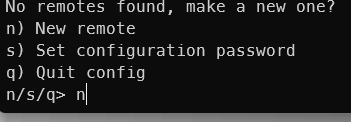
Give it a name (e.g. gdrive).Select Google Drive from the list of storage providers.
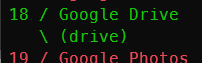
For most options, select the default by pressing Enter (or n).
When you reach the Auto Config step, you have two choices:Option 1 (Recommended for remote servers): Select n (No).
This will give you a link and a token. Copy the link to your local computer (laptop, desktop, or even Ubuntu WSL), open it in a browser, authorize rclone, and paste the resulting token back into the Proxmox terminal.
Option 2: Select Y for auto config. This works well if you have a desktop environment with a browser, but is usually not practical on a headless Proxmox server.
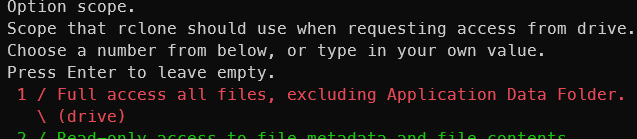
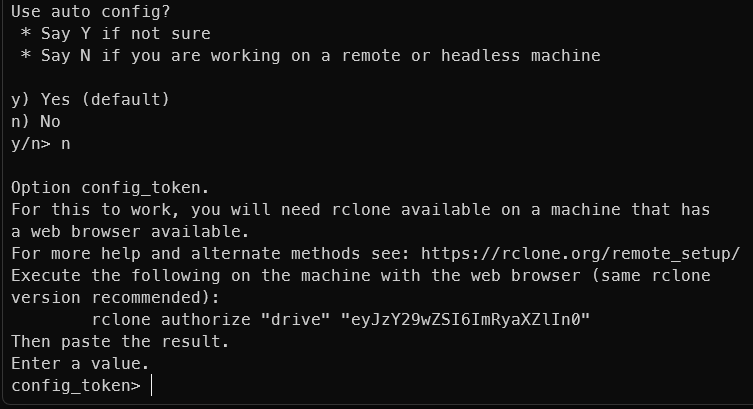
Since my Proxmox server is headless, I chose the token method. I installed rclone on my local Ubuntu machine (via WSL), completed the authorization there. If you're working remotely via SSH, you can also use SSH port forwarding (tunneling) to make the browser authentication easier, but personally I found the manual token method simpler and more reliable.
ssh -N -L 53682:127.0.0.1:53682 [email protected]SSH Tunnelling Example
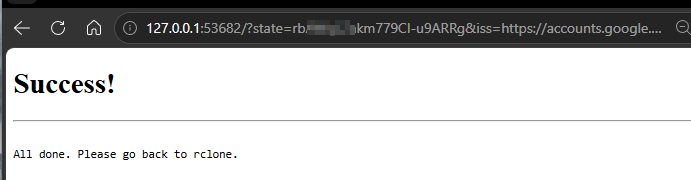
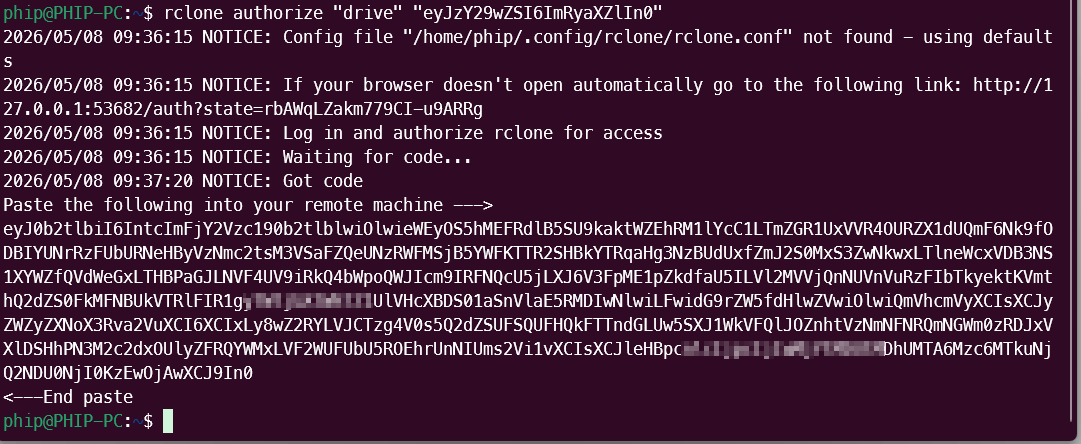
Copy the token when prompted and you're all set
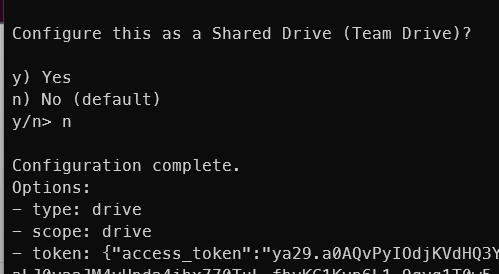
Test the Connection
Now let's test it first. The below command will list the directory of your google drive
use rclone lsd <remote-name>:List Google Drive directory
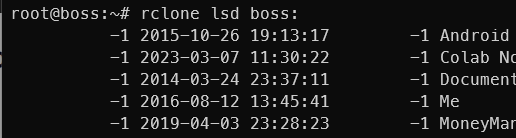
Create a test folder. This should appear in your google drive. I'm using "boss" as the configured name for my mini server
rclone mkdir boss:testfolderCreate a Test Folder
Creating a Systemd Service for Automatic Mounting
Now that we have rclone configured and tested, the next step is to make the Google Drive mount persistent so it automatically mounts after every reboot. On your Proxmox server, create a systemd service file with the following command:
nano /etc/systemd/system/rclone-mount.serviceNow that Google Drive is mounted, let’s create a proper backup service to automatically upload your Proxmox backups to the cloud. Paste the following systemd service file and customize it for your setup.
In this example, I’m naming the service rclone-mount.service (you can rename “boss” to anything you like - e.g. daily, homelab, etc.)
[Unit]
Description=Rclone Mount boss
After=network-online.target
Wants=network-online.target

[Service]
Type=simple
User=root
ExecStart=/usr/bin/rclone mount boss: /mnt/gdrive \
  --allow-other \
  --cache-db-purge \
  --poll-interval 10m \
  --dir-cache-time 72h \
  --vfs-cache-mode writes \
  --log-level INFO \
  --log-file /var/log/rclone-mount.log
ExecStop=/bin/fusermount -u /mnt/gdrive
Restart=on-failure
RestartSec=10

[Install]
WantedBy=multi-user.target
Each line explained:
ExecStart=/usr/bin/rclone mount boss: /mnt/gdrive \
Mounts the cloud storage to /mnt/gdrive
--allow-other \
Allows other users and services to access the mount
--poll-interval 10m \
Checks for remote changes every 10 minutes
--dir-cache-time 72h \
Caches directory listings to improve performance
--vfs-cache-mode writes \
Enables local caching for better file compatibility
--vfs-cache-max-size 40G \
Limits cache size to 40GB
--vfs-cache-max-age 24h \
Removes cached files older than 24 hours
--log-level INFO \
Enables standard logging
--log-file /var/log/rclone-mount.log
Saves logs to a file for troubleshooting
ExecStop=/bin/fusermount -u /mnt/gdrive
Unmounts the drive cleanly when stopping the service
Restart=on-failure
Restarts the service automatically if it fails
RestartSec=10
Waits 10 seconds before restarting the service
Enable FUSE permissions
Edit FUSE config:
nano /etc/fuse.confUncomment or add:
user_allow_otherWhy this matters:
Allows other system processes (not just root session) to access the mount.
Enable and start the service
systemctl daemon-reload
systemctl enable rclone-mount
systemctl start rclone-mount
What each command does:
daemon-reload→ reloads systemd configsenable→ starts mount automatically on bootstart→ starts it immediately
Check service status
systemctl status rclone-mount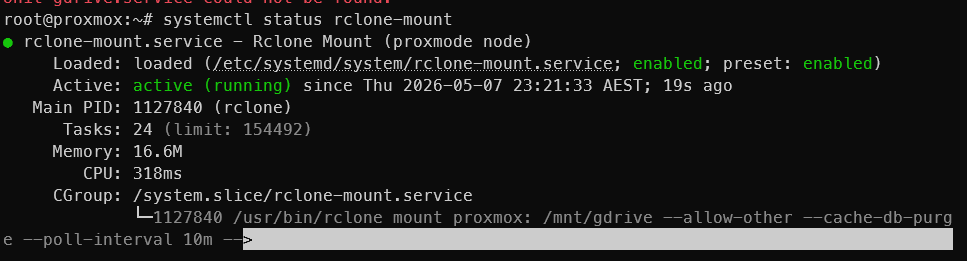
What to look for:
- Active: running
- No repeated errors
Why this is important:
Shows real-time:
- API calls
- errors
- slow responses
- authentication issues
Result
After setup, your Proxmox node will have:
- Persistent cloud storage mount
- Auto-start on reboot
- Stable access via
/mnt/gdrive - Logging for debugging
Create a Proxmox backups (vzdump test)
Now that the rclone mount is working, you can use it as a backup destination for Proxmox VMs.
📁 Create backup directory
Make sure the folder exists in the mounted storage:
mkdir -p /mnt/gdrive/proxmox-backupsRun a test backup
Example backup of VM 110:
vzdump 110 \
  --mode snapshot \
  --compress zstd \
  --dumpdir /mnt/gdrive/proxmox-backups/ \
  --prune-backups "keep-last=1"
🧠 What this does:
vzdump 110→ backs up VM ID 110--mode snapshot→ takes live snapshot without stopping VM--compress zstd→ fast compression format--dumpdir→ writes backup into rclone-mounted cloud storage--prune-backups→ keeps only last backup (saves space)
Monitor the logs and network traffic
You will see the below. Note "uploading 1". This means its still uploading.
tail -f /var/log/rclone-mount.log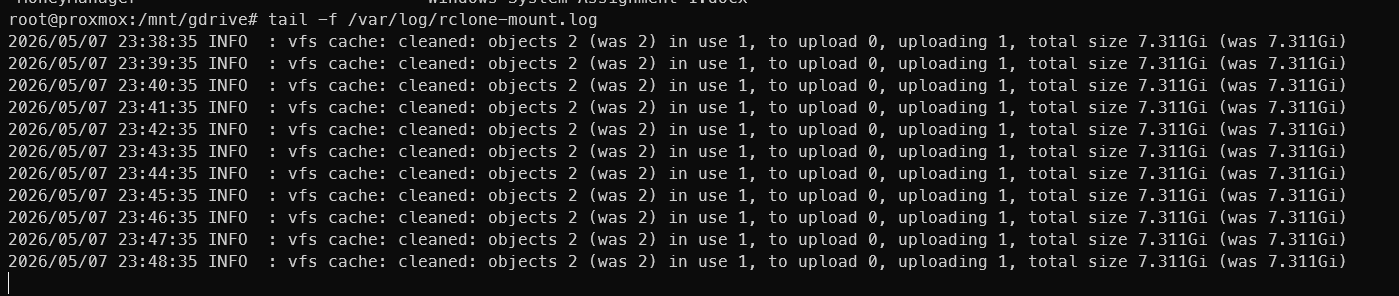
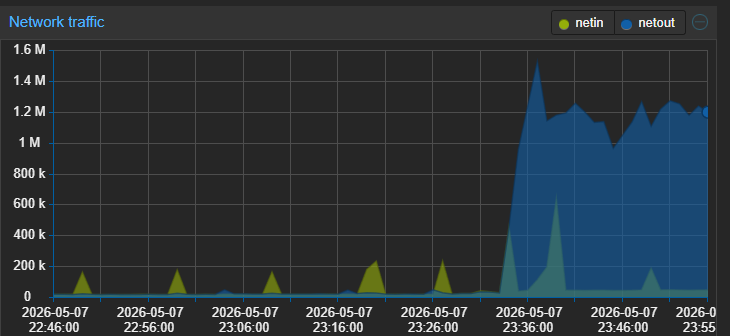
You have successfully configured and auto-mounted Google Drive on your Proxmox server using rclone!Your Google Drive should now be available at /mnt/gdrive (or whichever path you chose) and will automatically remount after every reboot thanks to the systemd service.
This means you now have seamless access to your cloud storage directly from your Proxmox host - perfect for storing backups, media files, documents, or any data you want to keep offsite.
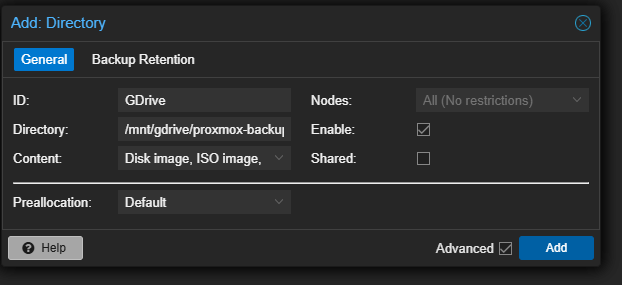
Optional Add rclone mount as Proxmox Storage (GUI integration)
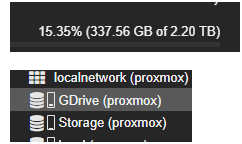
To make /mnt/gdrive usable directly inside Proxmox (GUI + backup system), you can add it as a Directory storage. This will allow you to use this as a drive across your nodes
On your proxmox node, navigate to Datacenter and add Directory. See below example
- Go to Datacenter → Storage → Add → Directory
- Set:
- ID: gdrive-backups
- Directory:
/mnt/gdrive/proxmox-backups - Content: VZDump backup file
- Click Add
⚠️ Important notes
- Ensure rclone mount is running BEFORE Proxmox starts backups
- If mount is down, backups will fail
- Use systemd service to ensure reliability
Known Issues & Limitations
While the setup works well most of the time, it’s not perfect. I’ve had the backup service fail on a couple of occasions. The most common issue occurs when the server is restarted or interrupted while rclone is still uploading a large backup file. This breaks the active connection, causing the sync to fail mid-transfer.Because the service is set to Type=oneshot, a failed run marks the service as failed
Found this article useful? Why not buy Phi a coffee to show your appreciation?